
Settings
Manage your Chronosky account settings, scheduler authorization, and service disconnection.
Overview
The Settings page allows you to configure your Chronosky account preferences, manage scheduler authorization, and disconnect your service if needed.
Accessing Settings
- Click on your profile icon in the top right corner
- Select "Settings" from the dropdown menu
- You'll be taken to the Settings page
Language Settings
Changing Display Language
Chronosky supports multiple languages for the user interface:
Navigate to the Language section in Settings
Select your preferred language from the dropdown:
- English (EN)
- Japanese (日本語)
- Spanish (Español)
- French (Français)
- Korean (한국어)
- German (Deutsch)
- Portuguese (Português)
The interface will update immediately
INFO
Timezone Browser's timezone is selected by default, but you can manually search and select a different timezone from the dropdown combobox when creating or editing a post.
Usage Statistics
Current Usage Overview
The Usage Statistics section displays your current posting activity and plan limits.
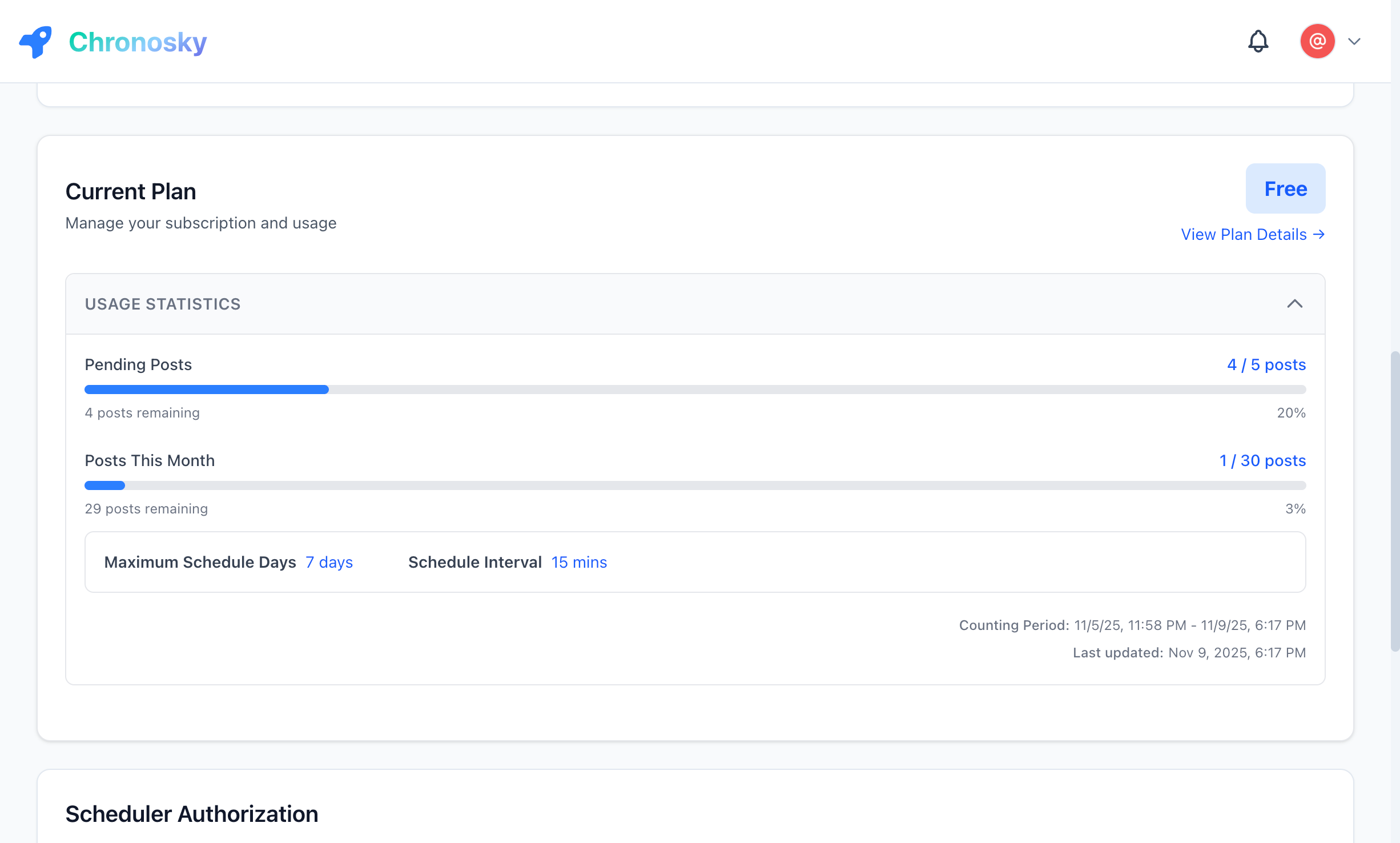 View your current usage statistics and plan limits
Displayed Information:
- Pending Posts - Number of posts currently scheduled
- Plan Limit - Maximum allowed pending posts for your plan
- Usage Percentage - Visual progress bar showing usage ratio
- Available Slots - Remaining posts you can schedule
INFO
Free Plan Limits
The Free plan allows up to 15 concurrent scheduled items (scheduled posts and scheduled reposts combined), and up to 75 scheduled items within each 30-day cycle (measured from your account's creation date, not the calendar month). Scheduled deletions have a separate concurrent limit of 45 and are not subject to the 30-day cycle limit. See Scheduled Reposts & Deletions for details.
Understanding Usage Limits
Concurrent Post Limit:
- Counts pending (not yet published) scheduled posts and scheduled reposts combined
- Published, canceled, and failed items don't count toward your limit
- Limit resets as items are published, canceled, or fail
Example:
- Limit: 15 pending items (scheduled posts and scheduled reposts combined)
- Current: 7 pending items
- Available: 8 more items can be scheduled
Scheduler Authorization
Understanding Scheduler Authorization
The scheduler authorization is a separate authentication token that allows Chronosky's background scheduler to post on your behalf at the scheduled time.
Key Points:
- Separate from Login - Scheduler uses a different token than your web login
- Required for Posting - Posts won't be published without active scheduler authorization
- 180-Day Validity - Authorization expires after 180 days and needs renewal
Checking Scheduler Status
Navigate to the Scheduler section in Settings to view:
- Status Indicator - Shows if scheduler is active or expired
- Expiration Date - When the current authorization will expire
- Days Remaining - Time until authorization expires
Status Types:
| Status | Indicator | Meaning |
|---|---|---|
| Active | 🟢 Green | Scheduler is authorized and working |
| Expired | 🔴 Red | Authorization expired, re-authorization needed |
| Expiring Soon | 🟡 Yellow | Less than 30 days remaining |
Re-authorizing Scheduler
When your scheduler authorization is expired or expiring soon:
- Navigate to Settings → Scheduler
- Click the "Re-authorize Scheduler" button
- You'll be redirected to Bluesky OAuth
- Approve the authorization request
- You'll be redirected back to Settings
- Verify the new expiration date
WARNING
Authorization Renewal It's recommended to re-authorize before expiration to prevent interruptions to your scheduled posts.
Danger Zone
The Danger Zone contains destructive actions that cannot be easily undone. Proceed with caution.
Disconnect Service
What This Does:
Disconnecting your service will:
- ✋ Revoke scheduler authorization - The scheduler will no longer be able to post on your behalf
- ✋ Cancel all pending posts - All scheduled posts will be removed
- ✋ Log you out - Your web session will be terminated
- ✋ Clear your data - Account preferences and settings will be reset
DANGER
Destructive Action This action is irreversible. All your scheduled posts will be permanently deleted and cannot be recovered.
When to Disconnect
Consider disconnecting if:
- You no longer want to use Chronosky
- You want to revoke all permissions granted to Chronosky
- You're switching to a different account
- You want to start fresh with a clean slate
How to Disconnect
- Scroll down to the Danger Zone section in Settings
- Click the "Disconnect Service" button
- A confirmation dialog will appear
- Read the warning carefully
- Type the confirmation phrase if required
- Click "Confirm Disconnect"
- You'll be logged out and redirected to the home page
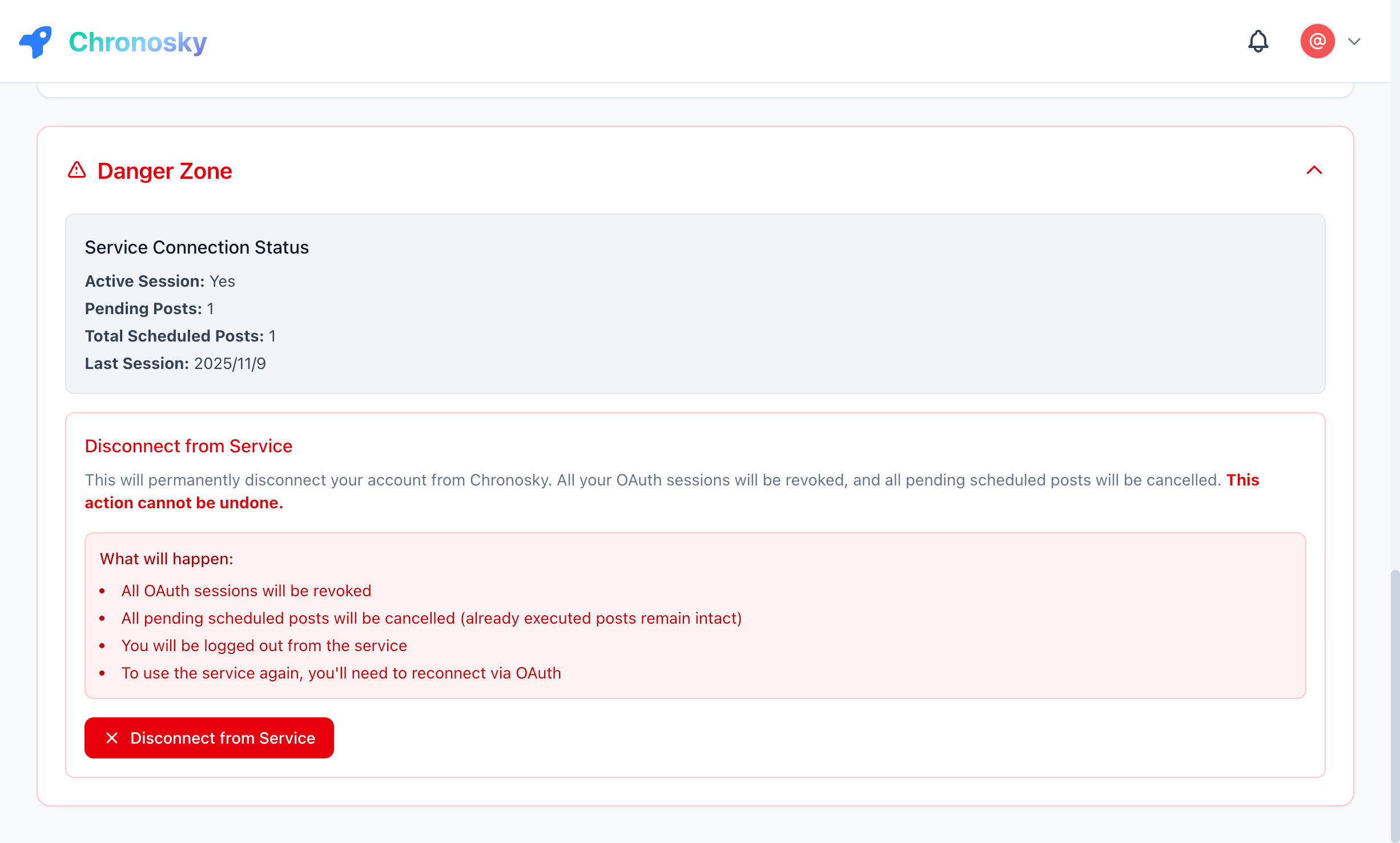 The Danger Zone section with disconnect button
DANGER
What Happens After Disconnection
- All pending posts are permanently deleted
- Scheduler authorization is revoked
- You'll need to sign in again to use Chronosky
- Previously published posts on Bluesky remain (not deleted from Bluesky)
Reconnecting After Disconnection
If you disconnect and want to use Chronosky again:
- Go to the Chronosky home page
- Click "Sign In" or "Get Started"
- Complete the OAuth authorization flow
- Authorize the scheduler
- Start scheduling posts again
INFO
Fresh Start Reconnecting after disconnection gives you a completely fresh start. Your previous scheduled posts will not be restored.
Privacy and Data
What Data Is Stored
Chronosky stores:
- Your Bluesky DID (Decentralized Identifier)
- Your handle and profile information
- Scheduled post content and metadata
- Scheduler authorization tokens (encrypted)
What Data Is NOT Stored
Chronosky does not store:
- Your Bluesky password
- Your Bluesky account credentials
- Direct messages or private content
- Followers or following lists
Data Deletion
When you disconnect your service:
- All scheduled posts are deleted immediately
- Authorization tokens are revoked and removed
- Account preferences are cleared
- Your Bluesky account remains unchanged
Troubleshooting
Scheduler Not Working
Symptoms:
- Posts remain in "Pending" status past scheduled time
- "Scheduler Expired" warning shown
Solution:
- Go to Settings → Scheduler
- Check authorization status
- Click "Re-authorize Scheduler" if expired
- Complete OAuth flow
- Verify new expiration date
Cannot Access Settings
Symptoms:
- Settings page not loading
- 401 Unauthorized error
Solution:
- Sign out completely
- Clear browser cache and cookies
- Sign in again
- Try accessing Settings
Language Not Changing
Symptoms:
- Selected language doesn't apply
- Interface still in previous language
Solution:
- Refresh the page (F5 or Cmd+R)
- Clear browser cache
- Select language again
- If issue persists, try a different browser
Security Best Practices
Regular Authorization Renewal
- Review Authorization - Check scheduler status monthly
- Renew Before Expiry - Re-authorize at least 7 days before expiration
- Monitor Activity - Check dashboard regularly for unexpected posts
Account Safety
- Use Strong Bluesky Password - Chronosky uses OAuth, but your Bluesky account should be secure
- Review Permissions - Understand what Chronosky can and cannot do
- Disconnect When Not Needed - If you stop using Chronosky, disconnect to revoke permissions
FAQ
Q: Will disconnecting delete my Bluesky account?
A: No. Disconnecting only removes your data from Chronosky and revokes authorization. Your Bluesky account remains active and unchanged.
Q: Can I recover scheduled posts after disconnecting?
A: No. Once you disconnect, all scheduled posts are permanently deleted and cannot be recovered.
Q: How often do I need to re-authorize the scheduler?
A: Scheduler authorization lasts 180 days. You'll need to re-authorize approximately every 6 months.
Q: What happens to published posts if I disconnect?
A: Posts already published to Bluesky remain on Bluesky. Only pending scheduled posts are deleted.
Q: Can I change my Bluesky account in Chronosky?
A: You need to disconnect first, then sign in with a different Bluesky account.
Next Steps
Now that you understand settings:
- Text Posts - Learn about scheduling text posts
- Thread Posts - Create multi-post threads
- Scheduled Reposts & Deletions - Automate reposts and deletions
- Quick Start - Get started with Chronosky