
Videos
Learn how to create and schedule posts with videos in Chronosky.
Overview
Chronosky lets you attach videos to your scheduled posts. You can schedule posts with videos captured on your smartphone, screen recordings, and more.
Video Post Features
- Multiple Formats Supported: Supports MP4, MPEG, WebM, and MOV (QuickTime) formats
- Up to 300MB: Upload even larger files
- Up to 3 Minutes: Maximum video duration per Bluesky specifications
- Alt Text Support: Add alternative text for accessibility
INFO
Videos and images cannot be attached together
You cannot attach both a video and images to a single post. If you attach a video, image attachment is disabled. Likewise, if you attach images, you cannot attach a video.
Uploading a Video
Step 1: Access the New Post Form
Click the "New Post" button from the dashboard.
Step 2: Add a Video
There are two ways to add a video:
Method 1: Drag & Drop
- Select a video file from your computer
- Drag it to the video area in the post form
- Drop to upload the video
Method 2: File Selection
- Click the video icon in the post form
- A file selection dialog will open
- Select the video you want to upload
- Click "Open"
TIP
Supported Formats
Supported video file formats:
- MP4 (
.mp4) — Most widely supported - MPEG (
.mpeg,.mpg) - WebM (
.webm) - MOV / QuickTime (
.mov) — Files captured on iPhone and similar devices
Step 3: Preview Confirmation
The uploaded video is displayed in the post form.
Elements shown:
- Video duration — Length of the video (seconds)
- Remove button — × button to remove the video
- Add Alt Text button — Add alternative text
Step 4: Add Alt Text (Recommended)
Alt text is a description for users who cannot view the video. It is recommended to add it for better accessibility.
How to add alt text:
- Click the "Alt" button on the video preview
- An alt text input field will appear
- Briefly describe the content of the video
- Click "Save"
Alt text examples:
Bad example: "video"
Good example: "A 30-second video of cherry blossom petals dancing in the wind"

Bad example: "screen recording"
Good example: "Screen recording showing how to upload a video in Chronosky's new post form"
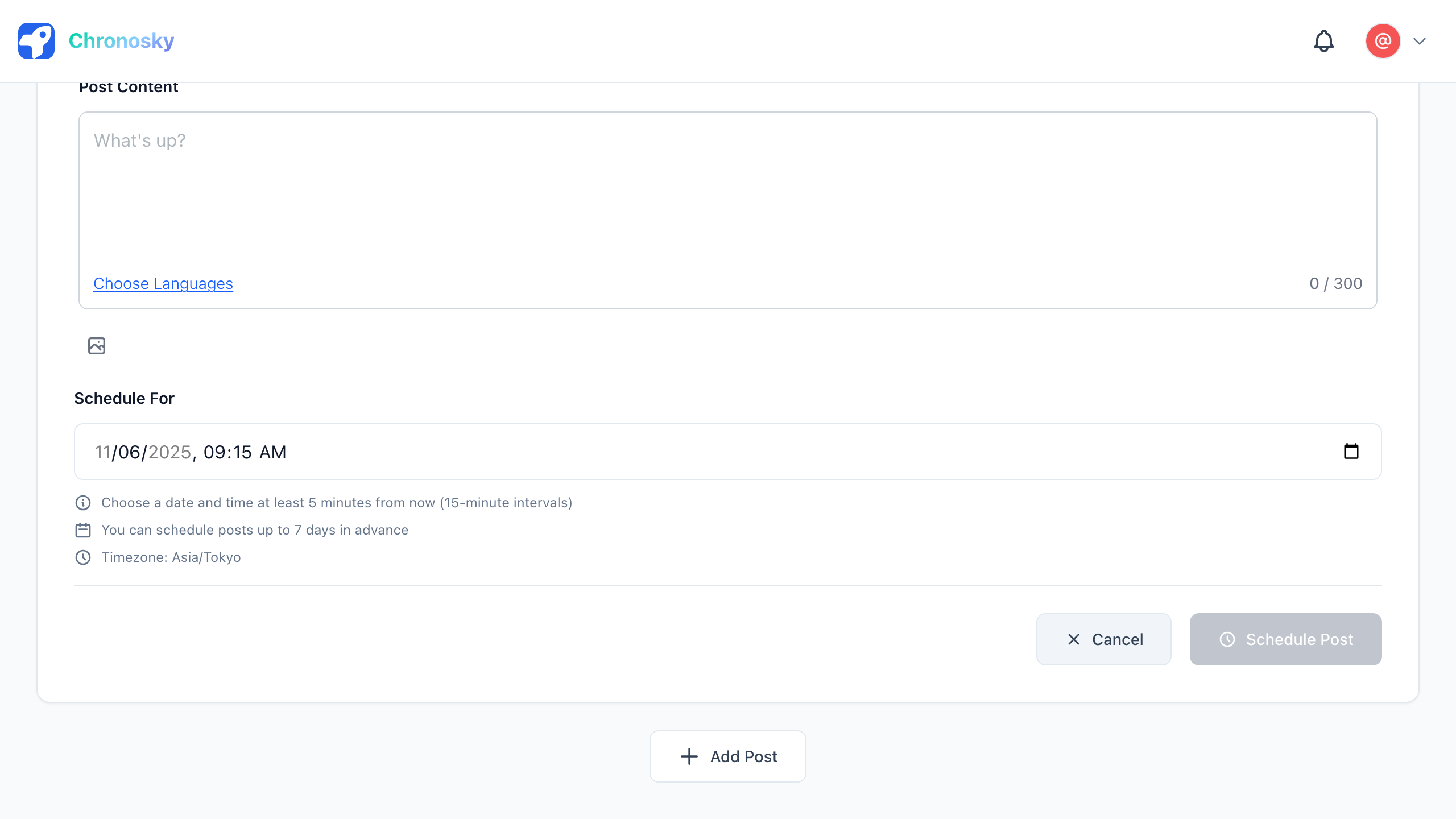
Step 5: Select Schedule Time
Video posts can be scheduled just like regular posts.
Step 6: Review and Schedule
Before scheduling, check the following:
Checklist:
- ✅ Video is correctly uploaded
- ✅ Video duration is 3 minutes or less
- ✅ File size is 300MB or less
- ✅ Post content is correct
- ✅ Schedule time is correct (at least 5 minutes from now)
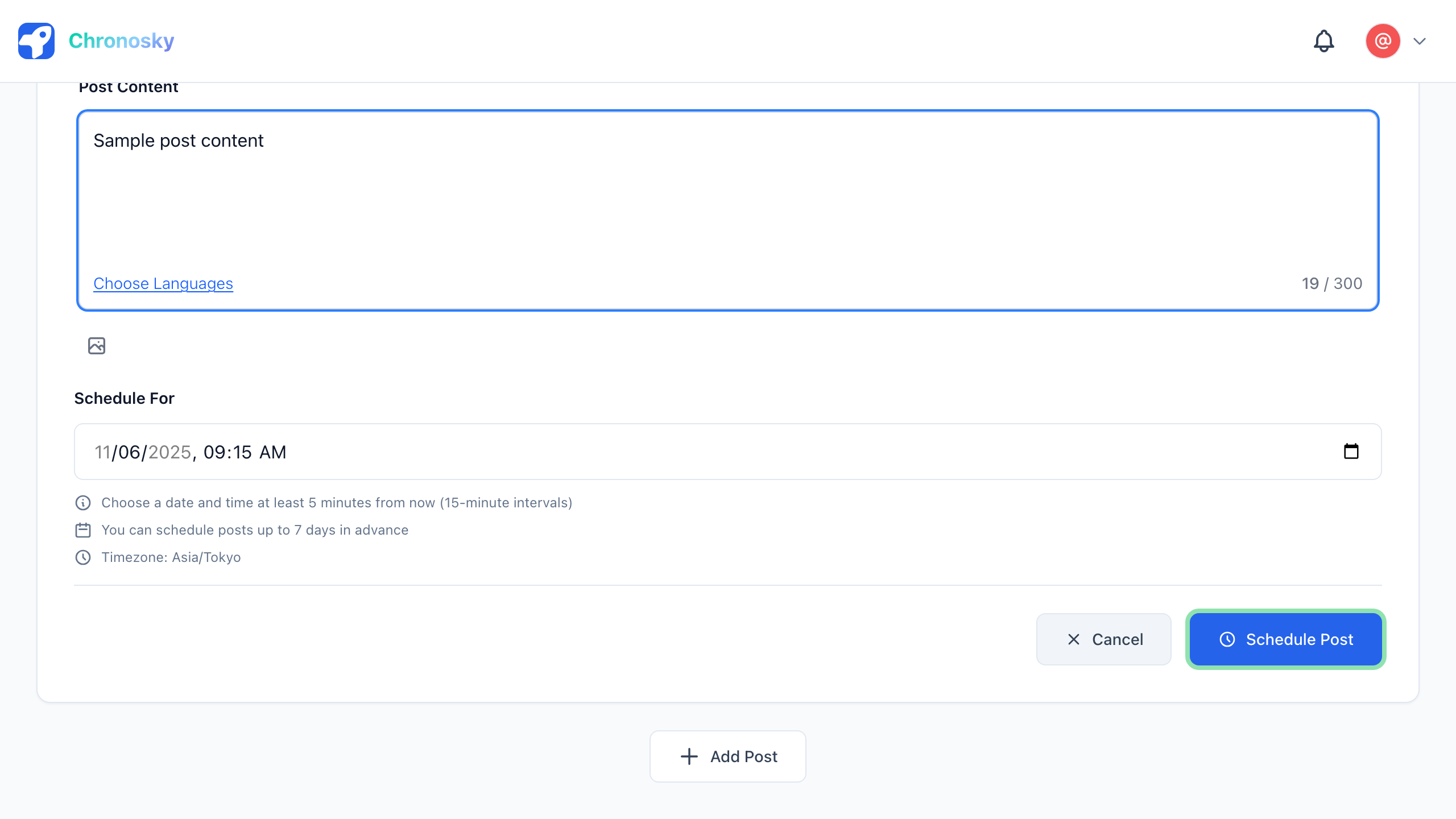
Click the "Schedule Post" button to schedule your video post.
Video Limits
| Item | Limit |
|---|---|
| Max File Size | 300MB |
| Max Duration | 3 minutes (180 seconds) |
| Supported Formats | MP4, MPEG, WebM, MOV (QuickTime) |
| Videos per Post | 1 |
| Combined with Images | Not allowed (mutually exclusive) |
INFO
Bluesky Video Limits
The 3-minute duration limit is per Bluesky's specifications. Videos exceeding this cannot be uploaded.
Videos in Thread Posts
In thread posts, each post (parent or child) can have its own video attached.
Example thread with videos:
Post 1 (parent):
Here's the event digest video! (1/2)(Video 1 attached)
Post 2 (child):
More scenes coming your way. (2/2)(Video 2 attached)
Troubleshooting
Common Issues
Cannot Upload Video
Symptoms:
- Selecting a file doesn't add the video
- An error message appears
Common causes:
- Unsupported file format (e.g. AVI, WMV, MKV)
- File size exceeds 300MB
- Video duration exceeds 3 minutes
Solutions:
Check file format
- Convert to MP4, MPEG, WebM, or MOV and try again
- Use a free conversion tool like HandBrake
Check file size
- Compress to under 300MB
- Export with lower quality in a video editor
Check video duration
- Split the video if it exceeds 3 minutes
Want to Attach Both Video and Images
Symptoms:
- Image button becomes disabled when a video is attached
Explanation:
Per Bluesky's specifications, a single post cannot have both a video and images attached.
Solution:
- Use thread posts to attach videos and images in separate posts
Best Practices
Video Quality
Appropriate resolution
- HD (1280×720) or higher recommended
- Unnecessarily high resolution increases file size
Choosing a file format
- MP4 is the most commonly used and recommended format
- MOV files captured on iPhone can be used as-is
Optimizing file size
- Edit to fit within the 300MB limit
- Compress using a video editor if needed
Using Alt Text
Write specific descriptions
- Clearly describe what's in the video
- Avoid vague expressions like "video" or "file"
Appropriate length
- Summarize in 1–2 sentences
- No need to make it excessively long
Combining with Post Content
Add a description of the video
- Briefly describe the video in text
- Help viewers understand the content before watching
Appropriate hashtags
- Use hashtags related to the video
- Increase engagement
Next Steps
Now that you've learned how to create video posts, explore more features:
- Image Posts - Use images instead of videos
- Link Cards - Create posts with link previews
- Thread Posts - Schedule multiple posts in sequence
FAQ
Q: What video formats are supported?
A: MP4, MPEG, WebM, and MOV (QuickTime) formats are supported. Formats such as AVI and WMV are not supported, so please convert them beforehand.
Q: Is there a file size limit for videos?
A: Yes, the maximum is 300MB. Files exceeding this limit cannot be uploaded.
Q: Is there a duration limit for videos?
A: Per Bluesky's specifications, the maximum is 3 minutes (180 seconds). Videos exceeding this should be split and posted as thread posts.
Q: Can I attach multiple videos to one post?
A: No, only one video can be attached per post. Use thread posts to post multiple videos.
Q: Can I attach both a video and images to the same post?
A: No, per Bluesky's specifications, video and images cannot be attached to the same post. Use thread posts to attach them in separate posts.
Q: Can I use videos recorded on my smartphone directly?
A: Yes, MOV files recorded on iPhone and most MP4 files recorded on Android smartphones can be used directly. Please be aware of the file size and duration limits.