
Link Cards
Learn how to create and schedule posts with link previews in Chronosky.
Overview
Link cards are link previews that display the title, description, and image of a linked page in card format. URLs in your post are automatically detected and shown as buttons, but link cards are not created automatically. A link card is only generated when you click a button to select a URL. If you don't select one, the post is published without a link card.
Link Card Features
- Manual Selection: Detected URLs appear as buttons below the text area. Click a URL button to select it and generate a link preview card.
- No Card Without Selection: If you don't click a URL button, no link card will be created
- High-Quality Previews: Retrieves images, titles, and descriptions from link destinations
- X/Twitter Support: Twitter (X) links also display with high-quality previews
- Stable Display: Caching prevents issues from external site changes
INFO
What are Link Cards? Link cards are a feature that displays URL previews. Like "link previews" on Twitter (X) or Facebook, they visually display information about the link destination.
Creating Link Cards
Step 1: Access New Post Form
Click the "New Post" button from the dashboard.
Step 2: Create a Post with URL
Include a URL in your post content.
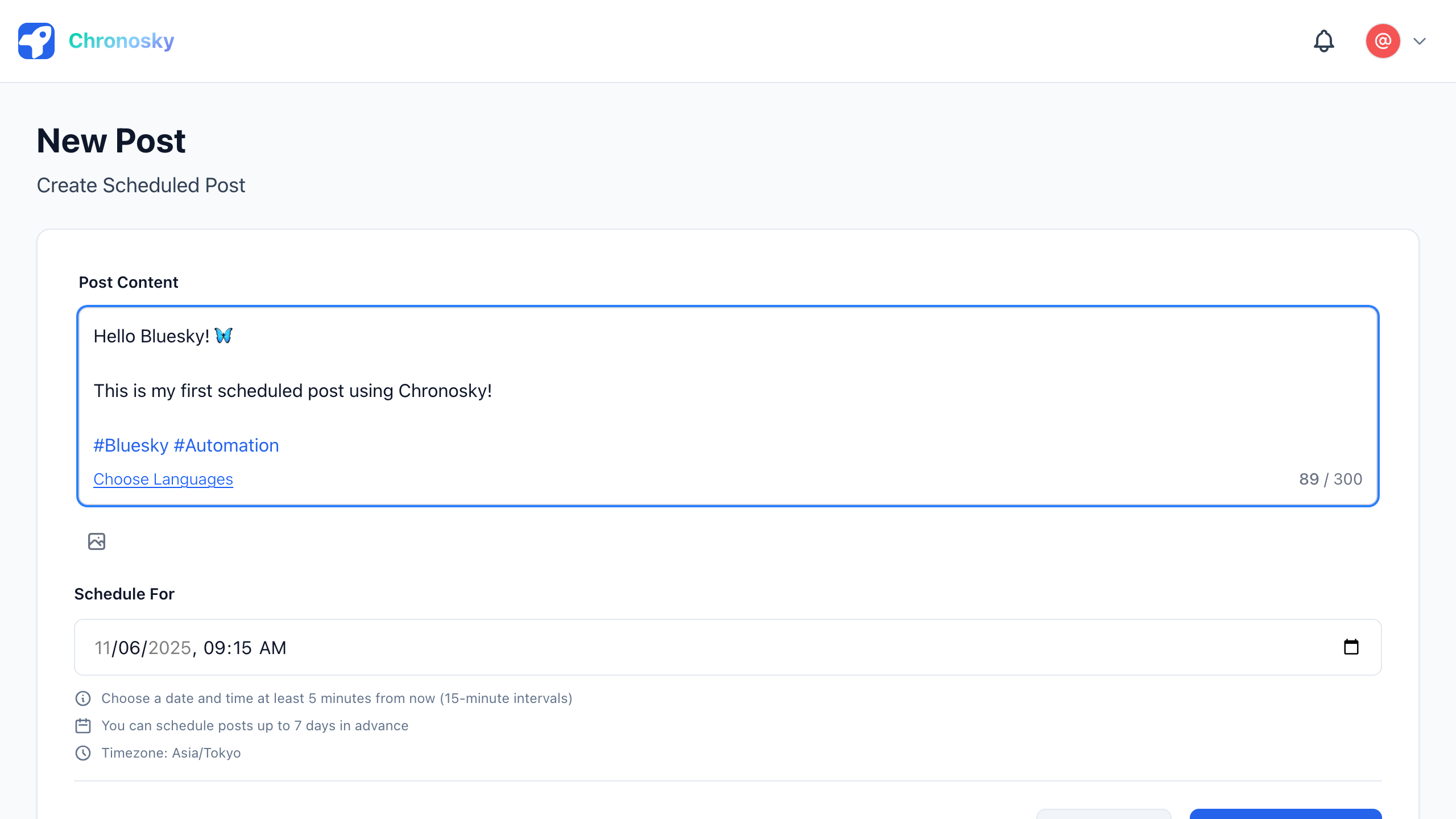
Example Post with Link Card:
I wrote a blog post about Chronosky's new features!

It covers useful ways to use scheduled posting. Check it out 👇

https://example.com/blog/chronosky-tips

#Bluesky #ScheduledPosting
TIP
URL Placement URLs can be placed anywhere in the post - beginning, middle, or end. Link cards are automatically generated regardless of position.
Step 3: Link Card Preview
When you enter a URL, Chronosky automatically retrieves information from the link destination.
Information Displayed in Link Card:
- Image - Thumbnail image from the link
- Title - Page title
- Description - Brief page description
- URL - Domain name of the link
INFO
Preview Generation Time Link card preview generation may take a few seconds. During generation, only the URL is displayed.
Step 4: Verify Link Card
After the preview is generated, verify the content.
Verification Checklist:
- ✅ Image displays correctly
- ✅ Title is accurate
- ✅ Description is appropriate
- ✅ URL is correct
Step 5: Select Schedule Time
Posts with link cards can also have scheduled times selected like regular posts.
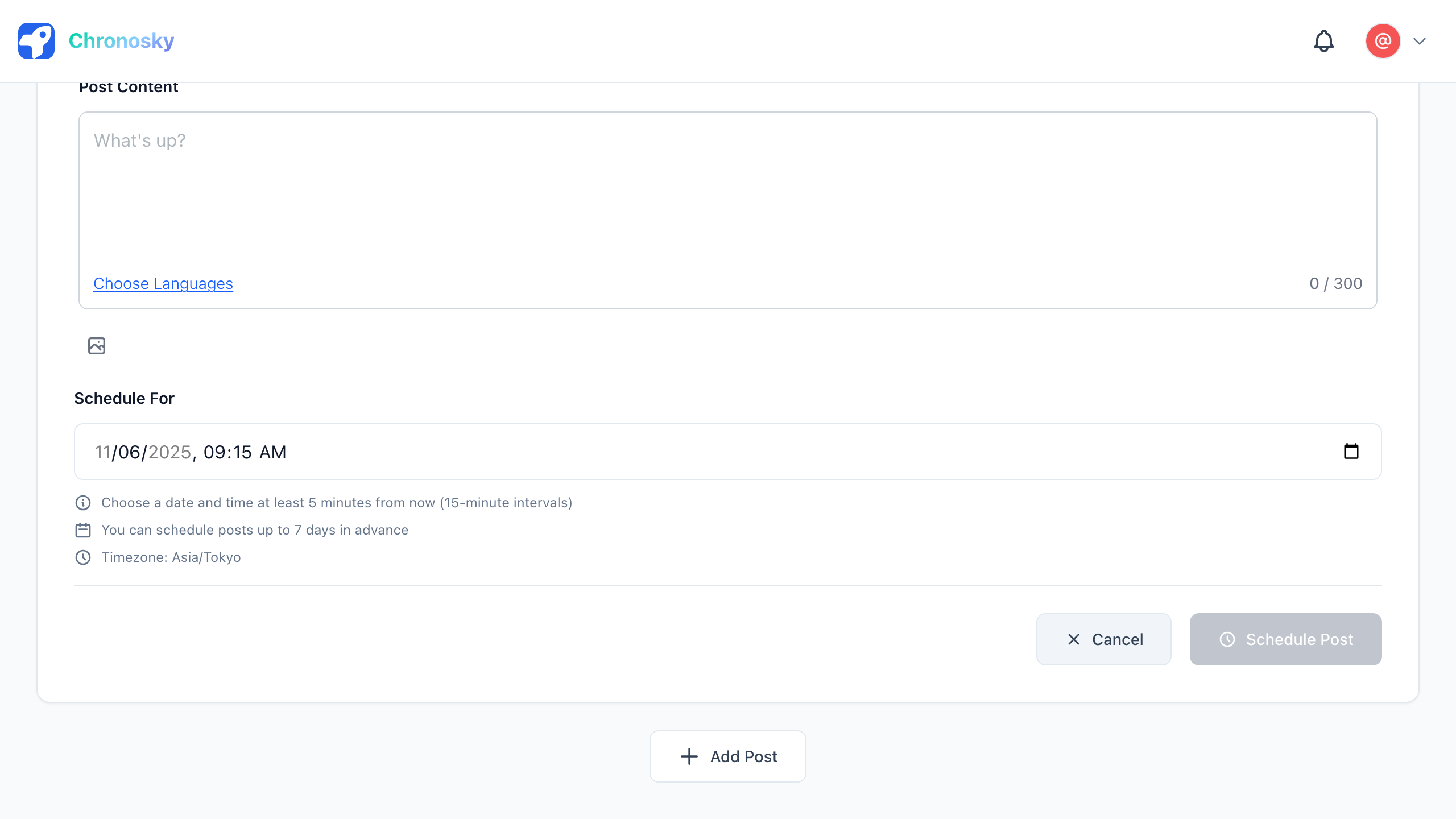
Step 6: Review and Schedule
Before scheduling, verify:
Review Checklist:
- ✅ Link card generated correctly
- ✅ Post content is correct
- ✅ Schedule time is correct (at least 5 minutes ahead)
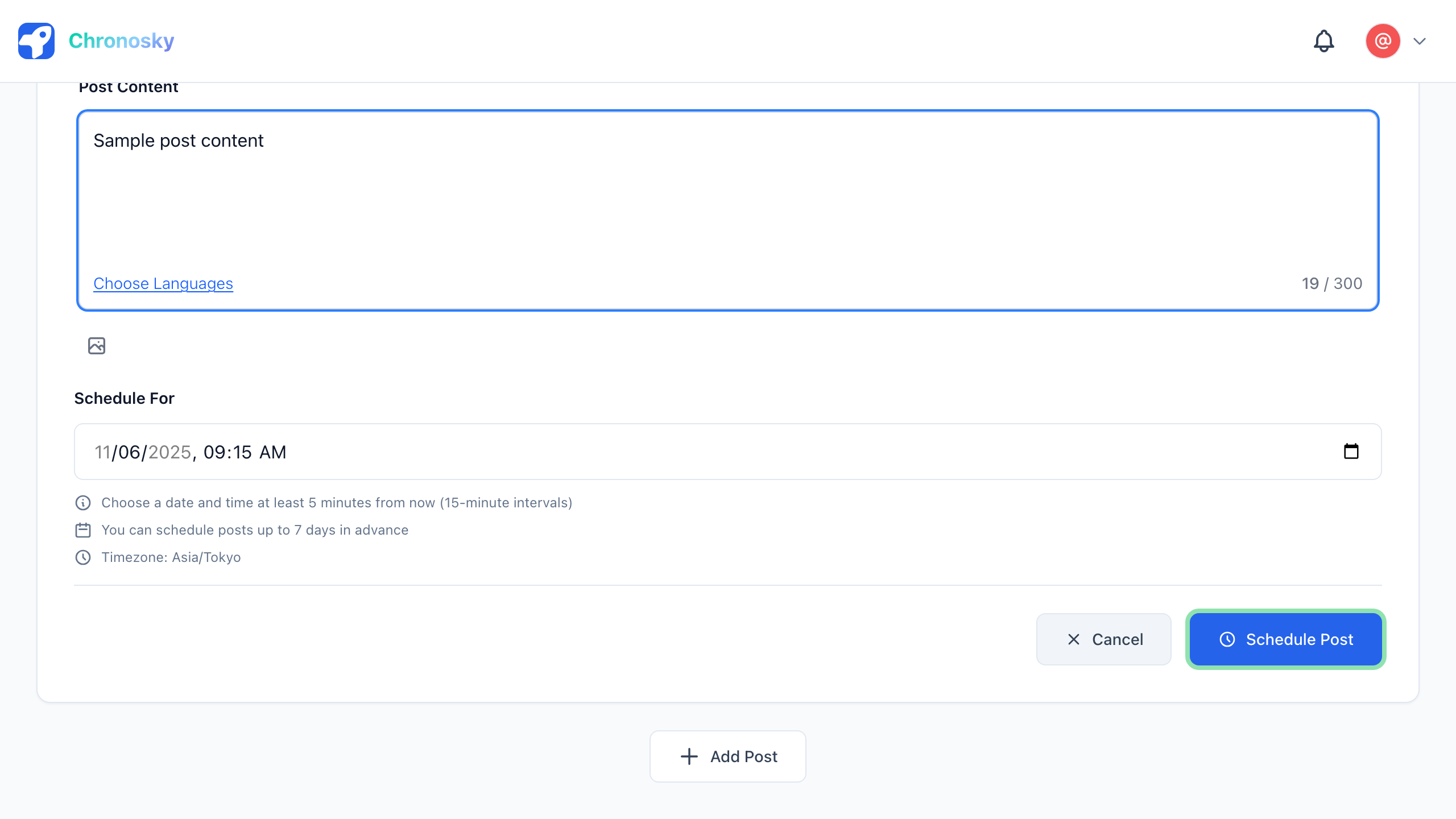
Click the "Schedule Post" button to schedule your post with link card.
X/Twitter Link Support
Chronosky has special support for X/Twitter links.
X/Twitter Link Features
- High-Quality Images: Retrieves high-quality images from tweets
- Tweet Content: Displays tweet text as description
- Author Information: Shows tweet author's name
- Reliable Display: Uses embedded JSON data for accurate information
Example X/Twitter Link:
This tweet about Bluesky is interesting!

https://twitter.com/username/status/1234567890

#Bluesky
OGP Cache System
Chronosky uses R2 storage to cache link card images.
Cache Benefits
- Prevents Broken Links: Protects against external site changes/deletions
- Reduces Dependencies: Fewer external API dependencies during post execution
- Storage Efficiency: Shared cache across users for the same URLs
- Better Reliability: Improved reliability for scheduled posts
Cache Mechanism
- When you add a URL, the thumbnail is fetched
- Thumbnail is stored in Cloudflare R2
- Cached thumbnail is used when the post is published
- Cache is shared across users for the same URL
Multiple Links
Single Post with Multiple URLs
You can include multiple URLs in a single post, but:
- ⚠️ Only one link card is displayed per post (Bluesky limitation)
- The first URL in the post generates the link card
- Other URLs display as plain text
Example:
Useful resources:
1. Chronosky Guide: https://docs.chronosky.app
2. Bluesky Official: https://bsky.app

(Only the first link will show a card)
Using Thread Posts for Multiple Links
To introduce multiple links with cards:
- Use thread posts
- Each post can have one link card
- Better for presenting multiple resources
Thread Example:
Post 1:
Here are some useful resources (1/3)

Chronosky Guide
https://docs.chronosky.app
Post 2:
(2/3)

Bluesky Official Site
https://bsky.app
Post 3:
(3/3)

That's it! Check them out ✨
Troubleshooting
Link Card Not Generating
Check the following:
- URL is correct - Enter a valid URL starting with HTTPS
- Link destination is public - Link cards cannot be generated for private pages
- Retry later - Temporary network issues may occur
- Check site support - Some sites may not support OGP
Incorrect Link Card Content
Possible causes:
- Site OGP not configured - Link destination may not have proper OGP tags
- Cache issue - Old cached data may be displayed
- Site content changed - Original site may have been updated
Image Not Displaying
Check:
- Image exists - Link destination must have an image
- Image format - Unsupported image formats may not display
- Image size - Very large images may fail to load
Best Practices
URL Selection
- Use relevant links that add value to your post
- Verify links work before scheduling
- Use HTTPS for security
- Avoid shortened URLs when possible (may affect preview quality)
Post Composition
- Add context - Explain why the link is valuable
- Use call-to-action - Encourage followers to click
- Include hashtags - Improve discoverability
Link Card Verification
- Always preview - Check link card before scheduling
- Verify image - Ensure appropriate image displays
- Check description - Make sure description is relevant
FAQ
Q: How many link cards can I add per post?
A: Only one link card per post due to Bluesky's specifications. Use thread posts to share multiple links with cards.
Q: Can I customize link card content?
A: No, link card content is automatically generated from the link destination's OGP data. You cannot customize it.
Q: What if the link card doesn't generate?
A: Some sites don't support OGP or have restrictions. The URL will still appear as plain text in your post.
Q: Are link cards cached?
A: Yes, link card images are cached in Cloudflare R2 for reliability and performance.
Next Steps:
- Thread Posts - Create threads with multiple link cards
- Images - Combine link cards with image posts
- FAQ - Common questions about link cards