
Image Posts
Learn how to create and schedule posts with images in Chronosky.
Overview
Chronosky allows you to add images to your scheduled posts. Easily schedule posts with photos, illustrations, screenshots, and other visual content.
Image Post Features
- Up to 10 Images: Attach up to 10 images per post
- Multiple Formats: Supports JPEG, PNG, WebP, and GIF formats
- Automatic Optimization: Uploaded images are automatically optimized
- Alt Text Support: Add alternative text for accessibility
INFO
Automatic Image Processing Images are automatically resized and compressed to comply with Bluesky's limitations (2MB max size, 2000×4000px max resolution). You can upload larger images, and the system will optimize them automatically.
Uploading Images
Step 1: Access New Post Form
Click the "New Post" button from the dashboard.
Step 2: Add Images
There are two ways to add images:
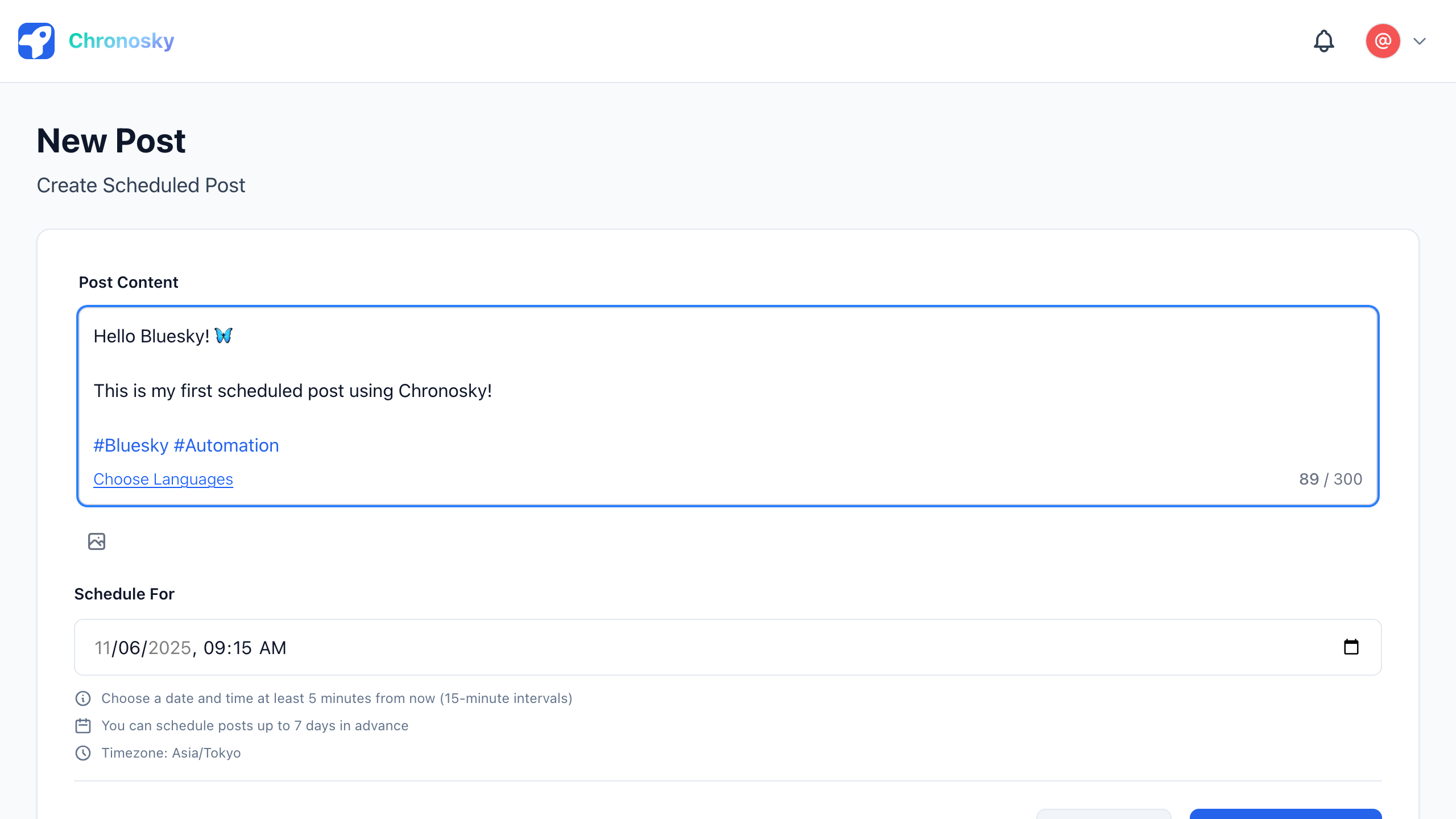
Method 1: Drag & Drop
- Select image files from your computer
- Drag them to the image area in the post form
- Drop to upload images
Method 2: File Selection
- Click the image icon in the post form
- File selection dialog opens
- Select images to upload
- Click "Open"
TIP
Add Multiple Images at Once You can select and upload multiple images at once. Hold Ctrl (Windows) or Cmd (Mac) while selecting up to 10 images.
Step 3: Image Preview
Uploaded images are previewed in the post form.
Preview Elements:
- Thumbnail - Reduced display of uploaded image
- Filename - Image filename
- File Size - Image size (KB or MB)
- Delete Button - × button to delete image
- Add Alt Text Button - Add alternative text
Step 4: Add Alt Text (Recommended)
Alt text is alternative descriptive text for users who cannot see images. Adding it is strongly recommended for accessibility.
How to Add Alt Text:
- Click the "Alt" button in the image preview
- Alt text input field appears
- Briefly describe the image content (up to 1000 characters)
- Click "Save"
Alt Text Examples:
Bad: "Image"
Good: "Sunset at the beach with waves rolling in"

Bad: "Screenshot"
Good: "Chronosky dashboard screen showing 3 scheduled posts"
INFO
Alt Text Best Practices
- Describe the image content specifically
- Decorative images don't need alt text
- Images with text should include that text
- Keep it concise (usually 1-2 sentences)
Step 5: Enter Post Content
After adding images, enter your post text.
Example Post with Image:
Today's sunset was absolutely beautiful 🌅

I want to share this moment I captured at the beach with everyone.

#Sunset #Ocean #Photography
Step 6: Select Schedule Time
Choose when to publish the post.
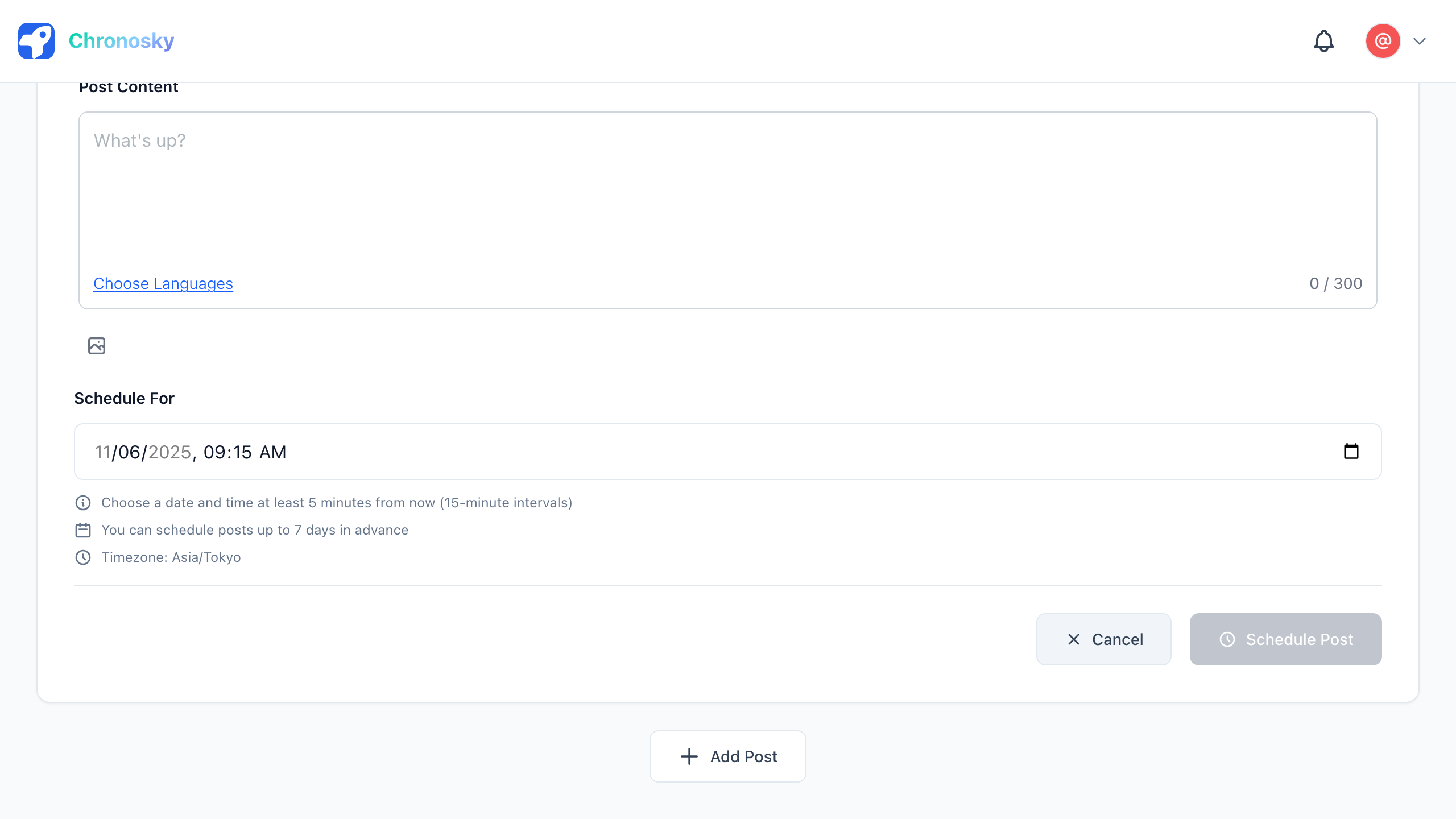
Step 7: Schedule the Post
Click the "Schedule Post" button to schedule your image post.
Image Specifications
Supported Formats
- JPEG (.jpg, .jpeg) - Best for photos
- PNG (.png) - Best for screenshots and graphics
- WebP (.webp) - Modern format with good compression
- GIF (.gif) - Animated images (may display as still on Bluesky)
Size Limitations
- Maximum File Size: 2MB per image (automatically optimized)
- Maximum Resolution: 4000×4000 pixels (automatically resized)
- Maximum Images: 10 images per post
- Recommended Resolution: 1920×1080 or smaller for optimal quality
TIP
Automatic Optimization Images larger than 2MB or exceeding 4000×4000 pixels are automatically resized and compressed. The system uses high-quality browser-based processing to maintain image quality while meeting Bluesky's requirements.
Image Management
Editing Images
After uploading, you can:
- Delete images - Click the × button on the image preview
- Add/edit alt text - Click the "Alt" button
- Reorder images - Drag and drop image previews
Deleting Images
- Click the × button in the top-right corner of the image preview
- Image is immediately removed
- You can upload a different image if needed
Thread Posts with Images
You can add images to thread posts as well:
- Each post in the thread can have up to 10 images
- Images are independent for each post in the thread
- Alt text can be added to each image
Troubleshooting
Image Won't Upload
Check the following:
- File size - Ensure each image is 2MB or less
- File format - Use JPEG, PNG, or WebP
- Network connection - Ensure stable internet connection
- Browser cache - Try clearing browser cache
Image Quality is Poor
Solutions:
- Use high-quality source images - Start with high-resolution images
- Compress before uploading - Use image compression tools
- Avoid multiple compressions - Don't re-compress already compressed images
Alt Text Not Saving
Check:
- Character limit - Alt text must be 1000 characters or less
- Save button - Make sure to click "Save" after entering text
- Network connection - Ensure stable connection
Best Practices
Image Selection
- Use relevant images that complement your post content
- Choose high-quality images for better engagement
- Avoid copyrighted images unless you have permission
- Use consistent image style for branding
Alt Text
- Always add alt text for accessibility
- Describe image content rather than just identifying it
- Be specific and concise (1-2 sentences)
- Include important text that appears in the image
File Management
- Optimize images before uploading to save storage
- Use appropriate formats (JPEG for photos, PNG for graphics)
- Delete old posts to free up storage capacity
FAQ
Q: What happens to images larger than 2MB or 2000×4000px?
A: Images are automatically resized and compressed during upload to meet Bluesky's requirements. Images are processed to stay within 2MB and 2000×4000px limits while maintaining the best possible quality.
Q: Can I edit images after uploading?
A: No, you cannot edit images after uploading. You can only delete and re-upload them.
Q: Are animated GIFs supported?
A: No, GIF format (including animated GIFs) is not supported. Please use JPEG, PNG, or WebP formats instead.
Q: Can I upload photos taken with my smartphone as is?
A: Yes, absolutely! The system is designed to automatically resize and compress large photos to meet Bluesky's requirements. For very large files (e.g., close to 50MB), pre-processing might speed up the upload, but it is not required.
Next Steps:
- Thread Posts - Create multi-post threads with images
- Link Cards - Add link previews to your posts